Computer cables are physical media used to transfer data, signals, and power between parts of a computer (such as the motherboard, hard drive, and monitor) or between the computer and external devices (such as printers, scanners, and mobile devices).
They act as “highways” for information, ensuring data and electricity reach their destinations correctly.
Basic Knowledge
Computer cables usually have several layers, and each layer has a special function:
Conductor: Usually made of high-purity copper or aluminum wire. It carries electrical signals. Copper is preferred because it conducts electricity well and bends easily.
Insulation layer: Covers the conductor. Materials like polyethylene (PE) or polyvinyl chloride (PVC) prevent short circuits and outside interference.
Shielding layer: High-performance cables may have one or more metal braids or foil shields to block electromagnetic interference (EMI) and improve signal quality.
Outer jacket: The outer protection layer gives strength, wear resistance, and insulation.
Function
The main function of computer cables is to connect and communicate between devices:
Data transmission: Transfer digital signals such as documents, videos, and music.
Power transmission: Supply electrical power to devices or internal components.
Signal synchronization: Keep clocks and signals between devices in sync.
Working Principle
Computer cables use voltage changes in the conductor to represent binary “0” and “1.” These changes encode digital information.
Different interface standards, such as USB (Universal Serial Bus) and HDMI (High-Definition Multimedia Interface), define how data is coded, decoded, and sent.
For example, USB 3.0 uses extra data lines for high-speed transfer, while HDMI uses TMDS (Transition Minimized Differential Signaling) technology to ensure video quality.
Types of Computer Cables
Computer cables can be divided into three main types: data transmission, power transmission, and audio transmission.
Below are common types and their features:
Type
Subcategory
Common Interfaces/Standards
Main Use
Data transmission
USB Series
USB-A, USB-C, Micro-USB
Connect peripherals and mobile devices
Video Transmission
HDMI, DisplayPort, VGA
Connect monitors and projectors
Network Cable
Ethernet (Cat5e–Cat7)
LAN and internet connection
Internal Transfer
SATA, IDE
Connect hard drives and optical drives
Power transmission
Power Cord
IEC C13/C14
Power for computers and monitors
Adapter Cable
Device-specific
Power for laptops and peripherals
Audio transmission
Analog Audio
3.5mm cable
Connect headphones and speakers
Digital Audio
TOSLINK, RCA
Transmit high-quality digital audio
Data Transmission Cables
USB cables: Support data transfer and charging. USB-C is reversible and supports speeds up to 40Gbps (USB4).
Video cables: HDMI and DisplayPort support high-resolution video and audio. VGA is analog and is being phased out.
Network cables: Ethernet cables (e.g., Cat6) support gigabit networks. Cat7 is used for 10-gigabit connections.
Data storage cables: SATA cables connect SSDs (Solid-State Drives) or HDDs (Hard Disk Drives).
Power Transmission Cables
Standard power cords: For example, IEC C13/C14, used for computers and monitors.
Device-specific power cables: Provide power to laptops and printers.
Audio Transmission Cables
3.5mm audio cable: Connects headphones or speakers.
Optical audio cable (TOSLINK): Transmits digital audio with strong interference resistance.
How to Identify Computer Cables Quickly
By Connector Shape and Pins
HDMI: Flat trapezoid connector with 19 pins.
USB-A: Flat rectangle, USB 3.0 versions are usually blue.
USB-C: Oval, reversible, and symmetrical.
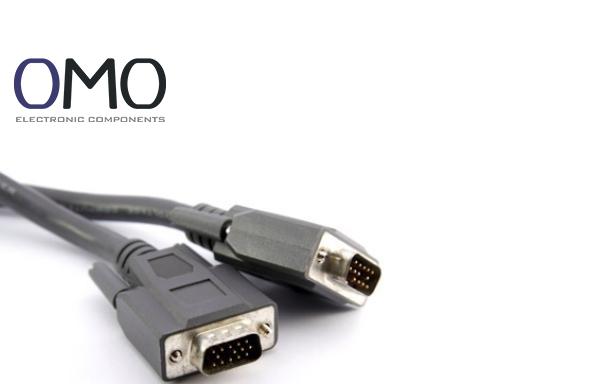
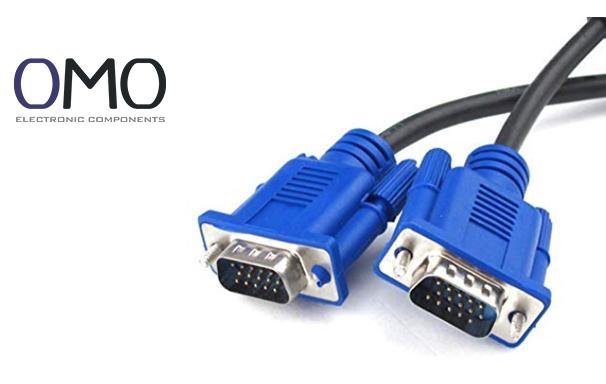
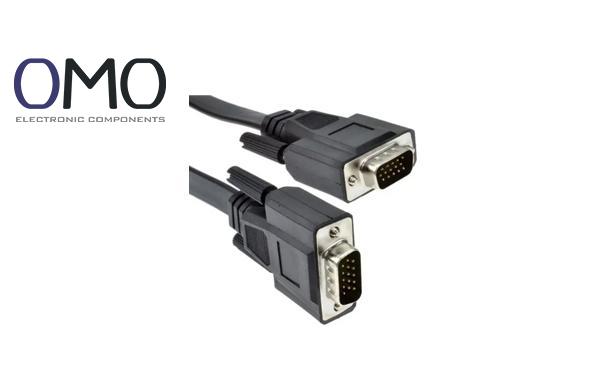
VGA: Blue D-shaped connector with 15 pins.
RJ45 (Ethernet): Wider than a phone plug, with a clip lock.
By Connector Color (on Motherboards)
Green: Audio output
Pink: Microphone input
Blue: Audio input
Red/Yellow: USB 3.0 ports
By Markings on the Cable
Cables often have printed information, for example:
“HDMI” = High-Definition Multimedia Interface
“CAT6” = Category 6 Ethernet cable
“USB 3.0” = Supports transfer speeds up to 5Gbps
Features of Computer Cables
Performance Features
Transfer speed: For example, USB 3.2 Gen 2 supports up to 10Gbps, and Cat6 cable supports 1Gbps. High-quality cables are about 30% more stable in high-speed use.
Resolution support: Different cables support different maximum resolutions:
Cable Type
Max Resolution (@Refresh Rate)
HDMI 2.1
8K@60Hz, 4K@120Hz
DisplayPort 2.0
8K@120Hz, 4K@240Hz
VGA
1080p@60Hz (Analog Signal)
Interference resistance: Shielded cables (STP, Shielded Twisted Pair) lose about 50% less signal than unshielded cables (UTP, Unshielded Twisted Pair).
Physical Features
Length: Very long cables can cause signal loss (for example, HDMI cables over 15m may need an amplifier).
Flexibility: Good copper cores and PVC jackets provide both flexibility and durability.
Shielding type: Double-shielded cables are for industrial use; unshielded are fine for home or office.
Applications of Computer Cables
Home and Office Use
Connect monitors, keyboards, mice, and printers.
Build a home LAN (Local Area Network) for file and internet sharing.
Connect external storage with USB cables.
Professional and Industrial Use
Data centers: Use Cat6A or fiber cables for high-speed data.
Audio and video production: Use SDI or XLR cables for professional quality.
Industrial control: Use RS-232 serial cables to connect control devices.
Internal Connections
SATA cables connect motherboards and drives.
Power cables supply electricity to the CPU and graphics card.
Factors to Consider When Choosing Computer Cables
Device Compatibility
Check the interface type (e.g., USB-C or HDMI 2.1) before buying.
For example, some old monitors only support VGA and need an adapter.
Performance Needs
Choose cables based on your needs:
Office work: USB 3.0 or Cat5e cables are enough.
4K video editing: Use HDMI 2.0 or DisplayPort 1.4.
Large file transfer: Choose USB-C or Thunderbolt cables.
Cable Length
Use the shortest cable that meets your distance needs.
Signal loss increases with length:
Ethernet cables over 100m may slow down.
USB 3.0 cables should be under 3m.
Quality and Shielding
Choose well-known brands (such as Belkin or Anker) for better conductor purity and shielding.
Use shielded cables in strong EMI environments (like factories).
Budget
Pick a cable that balances price and performance.
For example, Cat6 cables cost about 20% more than Cat5e but double the speed.
HDMI 2.1 cables are more expensive but ready for future 8K devices.
Use and Maintenance of Computer Cables
Proper Connection and Removal
Insert gently in the right direction to avoid bending pins.
Hold the connector head when unplugging; do not pull the cable.
Cable Management
Use ties to keep cables tidy and prevent tangles.
Keep them at least 10cm away from heat sources and power lines.
Troubleshooting
If a device is not detected:
Check if the connection is firm.
Try another working cable.
Clean dust from the port.
Maintenance and Care
Check regularly for outer jacket damage.
Avoid long sun exposure or damp places.
Do not bend too sharply to prevent wire breakage.
Frequently Asked Questions
How many types of cables are used in computer networking?
Communication systems primarily use three types of network cables: twisted pair, coaxial, and fiber optic. Each differs in physical construction, speed, bandwidth, and application.
What are cables in a computer network?
In computer networking, cables are physical connectors that transmit data, power, or signals to link devices and provide communication and networking functions.
What kind of cable is used for internet?
For high-speed internet, fiber optic cables are ideal. When using a wired connection, opt for an Ethernet (RJ-45) cable, selecting the category (e.g., Cat5e or Cat6) based on your speed requirements and usage.
What are the different computer ports and cables?
Ports serve as the physical interfaces on electronic devices, such as USB-C or HDMI, while cables act as connectors that join two devices together, exemplified by a USB-C to USB-A cable.